How to Pay a Vendor Bill in JobTread: A Step-by-Step Guide for Construction Contractors

Updated: May 25
By Tammy Hoang, CFMA | QuickBooks ProAdvisor | Construction Cost Accounting
(949) 482-2790 | constructioncostaccounting.com
If you use JobTread to manage your construction projects, knowing how to properly create, approve, and record vendor bill payments is one of the most important workflows you can master. Done right, paying a bill in JobTread feeds directly into your job costing, keeps your budget tracking accurate, and — when synced with QuickBooks — eliminates double entry entirely.
At Construction Cost Accounting, we work as a JobTread bookkeeper and QuickBooks ProAdvisor for Orange County construction firms. We set up this exact vendor bill workflow for every client — and we see the same mistakes made by contractors who set it up without guidance. This guide walks you through every step correctly, with the accounting context that makes the difference between clean books and a reconciliation nightmare.
JobTread is one of the fastest-growing pieces of construction management software in North America — ranked #6 on the Deloitte Technology Fast 500 and used by over 10,000 construction companies. This guide reflects how the software actually works, based on our hands-on experience as a certified JobTread advisor near me serving contractors across Southern California.
Read more:
The 6-Step Vendor Bill Payment Workflow
THE 6-STEP VENDOR BILL PAYMENT WORKFLOW IN JOBTREAD
Construction Cost Accounting — JobTread + QuickBooks Integration Guide
Step | Action | What You Do | JobTread Status After |
01 | Create Vendor Bill | From toolbar, PO, or mobile receipt scan | Draft |
02 | Select Vendor & Items | Choose vendor, budget source, line items & amounts | Draft / Pending |
03 | Edit & Save Details | Fill documentation, review progress bar, save | Saved |
04 | Approve the Bill | Mark as Payable (yellow $) or send to vendor | Payable |
05 | Record the Payment | Green $ icon → date, method, amount, reference # | Paid |
06 | Verify Against Budget | Check Bills column in job costing → watch for red flags | Verified |
→ After Step 6, syncs automatically to QuickBooks — job cost updated, no double entry required.
Source: Construction Cost Accounting | constructioncostaccounting.com

1 | Create the Vendor Bill There are three ways to create a vendor bill in JobTread depending on your workflow: Option A — From the Toolbar (most common) Click the + Document button in the top-right toolbar. Select Vendor Bill from the bottom-left of the template options. This opens a blank vendor bill ready to fill in from scratch. Option B — From an Existing Purchase Order If you have already issued an approved purchase order (PO) to a vendor, open that PO and click + Vendor Bill. JobTread automatically pulls all line items, quantities, and amounts from the PO into the new bill — no re-entry required. This is the fastest and most accurate method when a PO exists. Option C — Mobile Receipt Upload (field-friendly) On the mobile app, tap the Receipt Icon in the quick action toolbar. Upload a photo of a paper receipt or a PDF file. JobTread saves it as a draft bill for later review, or you can fill in the details immediately on-site. This is particularly useful for material purchases made in the field. |
CCA PRO TIP: Always create vendor bills from an existing PO when one exists. It creates a 3-way match between the PO, the vendor bill, and eventual payment — which is what your construction bookkeeper and CPA need for audit-ready records. |
2 | Select the Vendor and Source Items With the vendor bill open, complete these three selections in order:
|
⚠ If the vendor name in JobTread does not exactly match the vendor name in QuickBooks, the sync will create a duplicate vendor in QuickBooks. Your construction bookkeeper will need to merge them — which adds cleanup time to your monthly close. |
3 | Edit and Save Bill Details With vendor and line items selected, fill in the bill documentation before saving:
Once all fields are complete, click the green Save button at the bottom right of the bill. |
CCA PRO TIP: The subject line is not cosmetic — it is your audit trail. Your construction bookkeeper and your CPA will search by subject line when reconciling job costs. Make it specific enough that anyone can identify the bill from the name alone, six months later. |
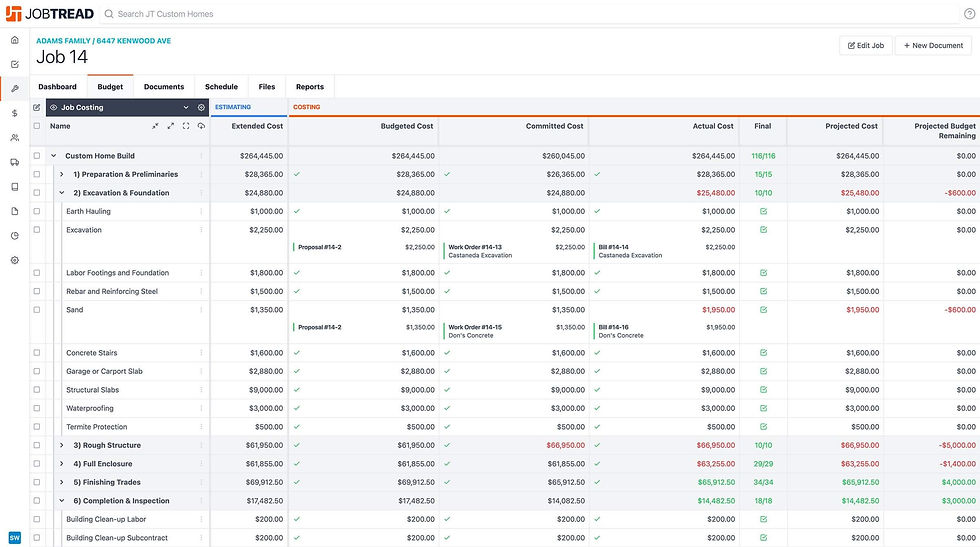
4 | Approve or Send the Bill After saving, the vendor bill moves to a Pending status. You have two actions available at this point: Send to Vendor (Paper Airplane icon) Click the Paper Airplane icon to send the bill document to the vendor electronically via their vendor portal. This prompts the vendor to review and attach their official invoice — creating a formal document exchange and a digital record of their submission. This is especially useful for subcontractor billing where you need the vendor's signed invoice before authorizing payment. Mark as Payable (Yellow Dollar Sign icon) Click the Yellow Dollar Sign icon to approve the bill for payment internally. This moves the bill to Payable status — it is now in the payment queue and visible in your payment dashboard. This is the step that tells your accounting team or your construction bookkeeper that this bill has been reviewed and is authorized to be paid. |
⚠ Do not mark a bill as Payable until it has been compared to the original vendor invoice or PO. Approving without verification is the leading cause of overbilling and duplicate payments in construction — both of which show up as job cost overruns that are difficult to reverse after the fact. |
5 | Record the Payment This is the step that actually closes the loop. Click the Green Dollar Sign icon or the + Record Payment button. A payment dialog box opens with the following fields:
Once the full amount has been paid, JobTread will automatically turn the document status green and display it as Paid. The payment is now part of your job's financial record. |
CCA PRO TIP: The Reference Number is the single most important field in this dialog for your construction bookkeeper. Without it, reconciling bank statements to JobTread payments becomes a manual matching exercise. Make it a non-negotiable standard for your team: every payment gets a reference number before it is saved. |
6 | Verify Against the Budget Payment recorded. Now verify the job costing impact:
|
The budget verification step is not optional. It is the moment where construction job cost tracking either works or doesn't — and the contractors who skip it are the ones who finish a job and can't figure out where the margin went. |
Why This Workflow Matters for Your Construction Bookkeeping

Each of the six steps above is connected. Skip Step 2 and your vendor names will mismatch in QuickBooks. Skip the Reference Number in Step 5 and your bank reconciliation becomes a manual hunt. Skip Step 6 and you will finish a job without knowing you were over budget on three cost codes.
This is exactly why construction firms that use JobTread without a dedicated construction bookkeeper often end up with job costing reports they cannot trust. The software does not make mistakes — but it also does not catch human workflow gaps. A JobTread bookkeeper who knows both the platform and construction bookkeeping standards is the difference between a system that works and one that creates more reconciliation work than it saves.
Read more:
As a marketing agency near me for construction financial systems in Orange County, CCA is the construction cost accounting firm that sets up this exact workflow for every client — correctly the first time, with QuickBooks synced and tested before we hand over the keys.
Need Help Setting Up JobTread + QuickBooks?
CCA is a certified JobTread advisor and QuickBooks ProAdvisor. We set up both systems for Orange County construction firms — so your vendor bills, job costing, and WIP reports run automatically.
calendly.com/tammycca/30min | (949) 482-2790
5 Common Vendor Bill Mistakes in JobTread (And How to Avoid Them)
These are the errors our construction bookkeeping team fixes most often when we take over an existing JobTread + QuickBooks setup:
# | Mistake | What It Causes |
1 | Vendor name mismatch with QuickBooks | Creates duplicate vendors in QuickBooks; breaks the sync; requires manual merge to fix |
2 | No reference number entered on payment | Bank reconciliation becomes manual matching; statements won't tie to JobTread records |
3 | Marking Payable before comparing to PO | Overbilling and duplicate payments; shows up as unexplained job cost overruns |
4 | Billing full amount on partial completion | Overstates costs in job costing; distorts WIP reporting and percent-complete calculations |
5 | Skipping budget verification after payment | Over-budget cost codes go undetected; margin problems surface at job closeout, too late to fix |
How CCA Uses JobTread as Your Construction Bookkeeper
CCA is not just a bookkeeping firm — we are a JobTread advisor near me for Orange County contractors and a certified QuickBooks ProAdvisor. When we onboard a new client, we set up the complete construction management software integration between JobTread and QuickBooks — so the vendor bill workflow described in this guide runs automatically, with clean data on both sides.
Here is what we configure and manage as your JobTread bookkeeper:
Initial setup: chart of accounts, cost codes, and vendor names synchronized between JobTread and QuickBooks
Vendor bill templates configured per trade — framing, plumbing, electrical, roofing
Payment method standards set across your team so every payment records consistently
Monthly review of the Bills column in every active job — flagging red overage indicators before they compound
QuickBooks sync verified monthly — every vendor bill payment reconciled to the bank statement
WIP report generated by the 10th of each month using JobTread's percent-complete data
Job cost reports delivered monthly showing budget vs. actual vs. committed for every active project
As a SEO marketing agency for construction financial systems, CCA knows that construction cost accounting done right means your job costing data is trustworthy every month — not just at tax time. That is what we build for every client using JobTread.
New to JobTread? Start with our complete guide: JobTread for Construction — Project Management, Job Costing & WIP Reporting Explained
Frequently Asked Questions
Does paying a vendor bill in JobTread automatically update QuickBooks?
Yes — if the QuickBooks integration is configured correctly. When a vendor bill is marked as Paid in JobTread, the payment syncs to QuickBooks as an Accounts Payable transaction, the vendor bill is marked paid in QuickBooks, and your job costing report in QuickBooks updates automatically. CCA sets up and tests this sync during onboarding. If you are not seeing the sync work, it means the integration has a configuration error — contact your construction bookkeeper or a JobTread advisor near me to diagnose it.
Can I pay a vendor bill partially in JobTread?
Yes. In Step 5, when recording the payment, enter only the amount being paid now. The bill will remain in Payable status with the outstanding balance visible. Once the total invoice amount has been fully paid across one or more payments, JobTread marks the bill as Paid automatically. This is useful for retainage situations or phased payment schedules.
What happens if my vendor bill exceeds the budget?
JobTread highlights the overbudget amount in red in the Bills column of the job budget. This is a warning indicator, not a block — you can still save and process the payment. However, your construction bookkeeper should be notified immediately when a red indicator appears. It means either the budget was set incorrectly, the vendor overbilled, or costs are running over for that cost code. Each scenario requires a different response.
How is paying a bill in JobTread different from paying in QuickBooks?
They serve different purposes. Paying a bill in JobTread records the cost against the job budget and updates your project-level job costing in real time. Paying in QuickBooks handles the accounting — accounts payable, bank reconciliation, and financial statements. When both are connected and synced correctly, you record the payment once in JobTread and it flows to QuickBooks automatically. Your construction bookkeeper manages both sides to ensure the data is consistent.
Do I need a JobTread bookkeeper or can I manage this myself?
You can manage the basic vendor bill workflow yourself once it is set up correctly. Where most contractors run into problems is the QuickBooks sync, cost code alignment, and monthly reconciliation — those require someone who understands both platforms and construction bookkeeping standards. CCA operates as a JobTread bookkeeper and handles the backend accounting so your team focuses on the field. If you find your job costing reports are not matching what you expect, or your QuickBooks and JobTread numbers diverge, that is the signal to bring in a specialist.
Is JobTread the best construction management software for small contractors?
For small to mid-size contractors — typically under $20M annual revenue — JobTread is one of the strongest options available. It ranked #6 on the Deloitte Technology Fast 500, has over 10,000 active construction companies, and consistently earns top ratings on G2 and Capterra for ease of use and value. CCA works with JobTread daily as a certified JobTread advisor near me for Orange County contractors, and we also work with Procore for larger operations. The right construction management software depends on your team size, project type, and reporting needs — we assess all three before recommending a platform.
Knowing how to pay a vendor bill in JobTread is not just an administrative task — it is the foundation of your construction cost accounting system. Every bill you create, approve, and record feeds directly into your job costing, your budget tracking, and — through the QuickBooks sync — your monthly financial statements. When this workflow runs correctly, you have real-time visibility into every job. When it doesn't, you have numbers you can't trust.
CCA is the construction bookkeeper and JobTread bookkeeper for Orange County contractors who want both platforms configured, maintained, and producing reliable numbers every month. As a marketing agency for construction financial clarity — we handle the setup, the monthly close, and the reporting so you can run your jobs without second-guessing your books.
Need Help Setting Up JobTread + QuickBooks?
CCA is a certified JobTread advisor and QuickBooks ProAdvisor. We set up both systems for Orange County construction firms — so your vendor bills, job costing, and WIP reports run automatically.
calendly.com/tammycca/30min | (949) 482-2790



Comments